Layout Extras
This section introduces components for special arrangements that cannot be expressed by basic layouts like Column or Row.
Stack
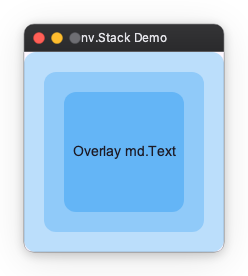
Arranges elements in stacking order (Z-order). Use this when you want to place text over a background image or display a notification badge over an icon.
- The first written element goes to the back (bottom).
- The last written element goes to the front (top).
import nuiitivet as nv
import nuiitivet.material as md
import nuiitivet.modifiers as mod

nv.Stack(
    width=240,
    height=200,
    alignment="center",  # Default alignment position
    children=[
        md.Card(
            md.Text(""),
            width="100%",
            height="100%",
        ).modifier(mod.background("#BBDEFB")),
        md.Card(
            md.Text(""),
            width="80%",
            height="80%",
        ).modifier(mod.background("#90CAF9")),
        md.Card(
            md.Text("Overlay Text"),
            width="60%",
            height="60%",
            alignment="center",
        ).modifier(mod.background("#64B5F6")),
    ],
)
Deck (Conditional Display)
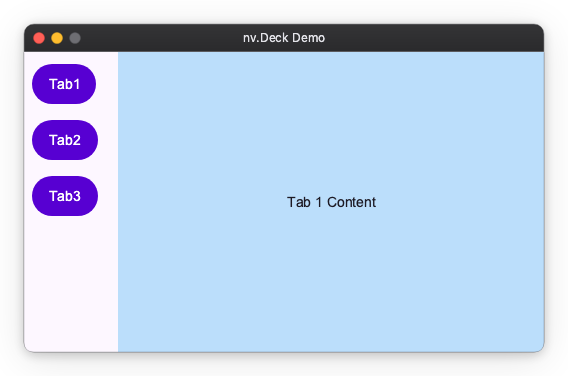
A component that displays only one child at a time from multiple children. Used for tab switching or content switching in side menus.
import nuiitivet as nv
import nuiitivet.material as md
import nuiitivet.modifiers as mod


def set_index(i: int) -> None:
    # state is assumed to be defined elsewhere or part of a class
    state.current_index.value = i


menu = nv.Column(
    padding=8,
    gap=8,
    children=[
        md.Button("Tab 1", on_click=lambda: set_index(0), style=md.ButtonStyle.filled()),
        md.Button("Tab 2", on_click=lambda: set_index(1), style=md.ButtonStyle.filled()),
        md.Button("Tab 3", on_click=lambda: set_index(2), style=md.ButtonStyle.filled()),
    ],
)

body = nv.Deck(
    index=state.current_index,
    width="100%",
    height="100%",
    children=[
        nv.Container(
            alignment="center",
            width="100%",
            height="100%",
            child=md.Text("Tab 1 Content"),
        ).modifier(mod.background("#BBDEFB")),
        nv.Container(
            alignment="center",
            width="100%",
            height="100%",
            child=md.Text("Tab 2 Content"),
        ).modifier(mod.background("#C8E6C9")),
        nv.Container(
            alignment="center",
            width="100%",
            height="100%",
            child=md.Text("Tab 3 Content"),
        ).modifier(mod.background("#FFE0B2")),
    ],
)

contents = nv.Row(
    gap=12,
    width="100%",
    children=[menu, body],
)
Flow (Wrap Layout)
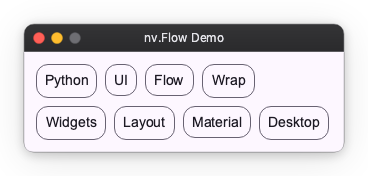
Arranges elements from left to right and automatically wraps to the next line when exceeding the parent width. Suitable for tag lists or card lists.
import nuiitivet as nv
import nuiitivet.material as md

tags = ["Python", "UI", "Framework", "Layout", "Grid", "Flex"]

nv.Flow(
    main_gap=8,
    cross_gap=8,
    padding=8,
    children=[
        md.Card(md.Text(tag), style=md.CardStyle.outlined()) for tag in tags
    ],
)
UniformFlow (Uniform Grid)
Arranges elements into a grid with uniform column widths. Use this for tile layouts where each cell should align and size consistently.
import nuiitivet as nv
import nuiitivet.material as md

tiles = ["A", "B", "C", "D", "E", "F", "G", "H", "I"]

nv.UniformFlow(
    columns=3,
    main_gap=8,
    cross_gap=8,
    padding=8,
    aspect_ratio=1.0,
    children=[
        md.Card(md.Text(t), alignment="center", padding=12)
        for t in tiles
    ],
)
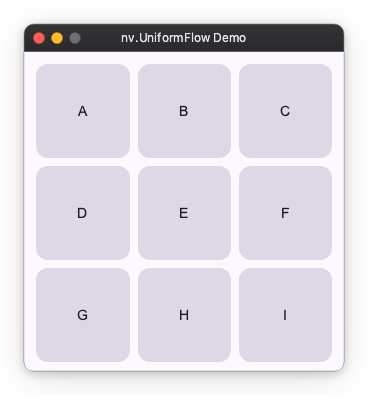
Flow vs UniformFlow
- Use Flow for wrapping rows with variable-width items (tags, chips, variable text).
- Use UniformFlow for grid-like layouts with uniform columns (tiles, cards, image grids).
Container (Decoration/Size Control)
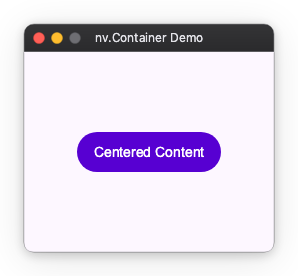
A wrapper with a single child element.
Used to add padding to child elements, fix sizes, or specify alignment.
(Similar to div in HTML)
import nuiitivet as nv
import nuiitivet.material as md

nv.Container(
    md.Button("Centered Content", style=md.ButtonStyle.filled()),
    width=250,
    height=200,
    alignment="center",
    padding=16,
)
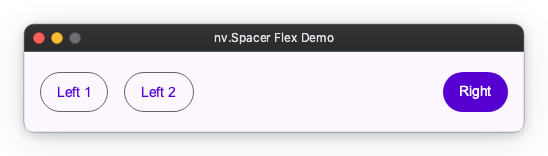
Spacer (Space Adjustment)
An invisible widget useful when you want to create flexible spacing.
Useful for pushing elements to both ends within Row or Column.
import nuiitivet as nv
import nuiitivet.material as md

nv.Row(
    padding=16,
    gap=16,
    width=500,
    children=[
        md.Button("Left 1", style=md.ButtonStyle.outlined()),
        md.Button("Left 2", style=md.ButtonStyle.outlined()),
        nv.Spacer(width="100%"),
        md.Button("Right", style=md.ButtonStyle.filled()),
    ],
)