Layout Alignment
Alignment determines "where to place" content in the remaining space.
Sizing (stretching/shrinking) is the role of Sizing, while Alignment is responsible purely for "positioning".
Basic Positioning Rules
- The content's own size is determined by
width/height. - Where to place it within the parent is determined by
alignment.
Positioning a Single Element
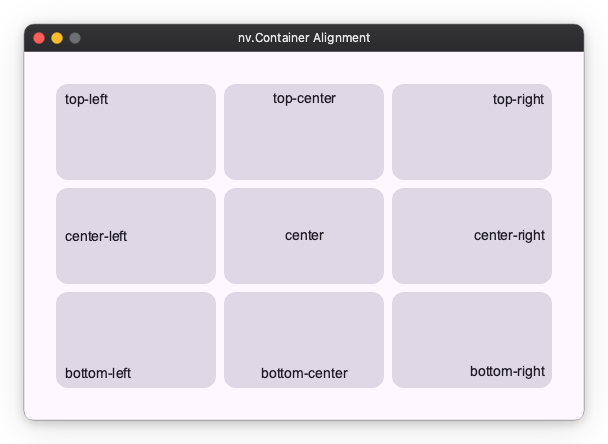
When there is only one child element inside a parent, you can specify 9 positions using the alignment property.
import nuiitivet as nv
import nuiitivet.material as md

alignments = [
    "top-left",
    "top-center",
    "top-right",
    "center-left",
    "center",
    "center-right",
    "bottom-left",
    "bottom-center",
    "bottom-right",
]


def _tile(alignment: str) -> md.Card:
    return md.Card(
        md.Text(alignment, padding=8),
        width=160,
        height=96,
        alignment=alignment,
    )

nv.UniformFlow(
    columns=3,
    main_gap=8,
    cross_gap=8,
    padding=8,
    # Render all variants so differences are easy to compare.
    children=[_tile(a) for a in alignments],
)
| Property | Meaning | Available Values |
|---|---|---|
alignment |
Placement position of the child element | top-left, top-center, top-right, center-left, center, center-right, bottom-left, bottom-center, bottom-right |
Note: "Expanding to full width" is not the job of alignment. In that case, specify
"100%"orSizing.flex(...)in the child'swidth.
Arranging Multiple Elements
When arranging multiple elements, different properties are used for the "arranging direction (Main axis)" and "other direction (Cross axis)".
Row
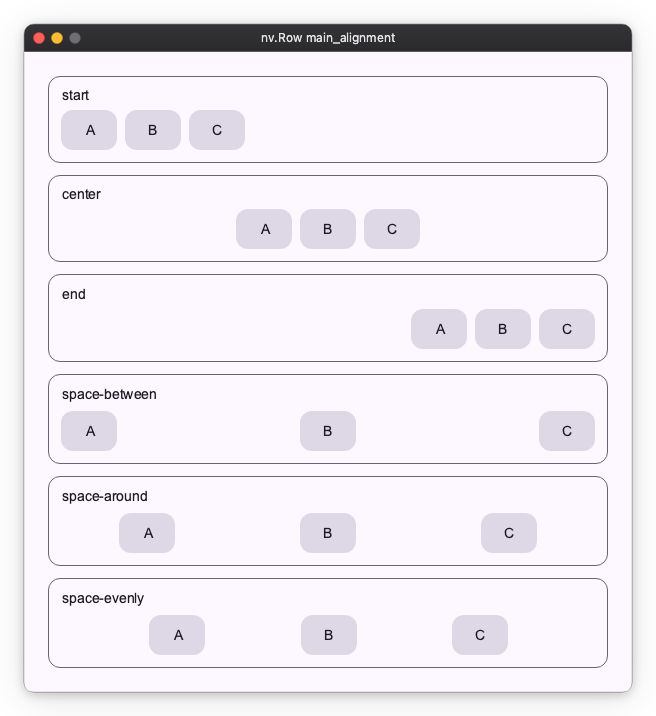
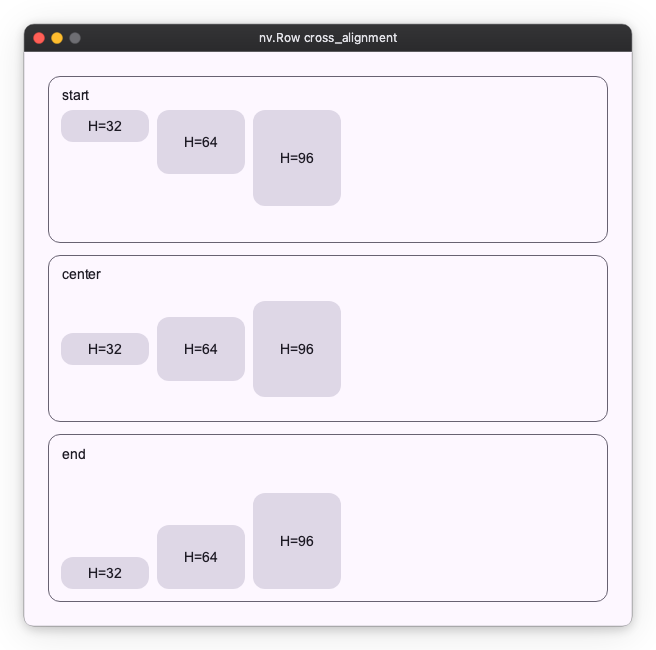
Row uses different values for the arranging direction (Horizontal=Main) and the crossing direction (Vertical=Cross).
Examples of main_alignment
import nuiitivet as nv
import nuiitivet.material as md

main_alignments = [
    "start",
    "center",
    "end",
    "space-between",
    "space-around",
    "space-evenly",
]


def _demo_row(alignment: str) -> nv.Row:
    # The row stretches to full width, so main-axis alignment is visible.
    return nv.Row(
        width="100%",
        gap=8,
        main_alignment=alignment,
        cross_alignment="center",
        children=[_tile("A"), _tile("B"), _tile("C")],
    )


def _tile(label: str) -> md.Card:
    return md.Card(
        md.Text(label),
        width=56,
        height=40,
        alignment="center",
    )


nv.Column(
    gap=12,
    cross_alignment="start",
    children=[
        md.Card(
            nv.Column(
                children=[
                    md.Text(a),
                    _demo_row(a),
                ],
                gap=8,
                cross_alignment="start",
                width="100%",
            ),
            padding=12,
            style=md.CardStyle.outlined(),
        )
        for a in main_alignments
    ],
)
Examples of cross_alignment
import nuiitivet as nv
import nuiitivet.material as md

cross_alignments = [
    "start",
    "center",
    "end",
]


def _demo_row(alignment: str) -> nv.Row:
    # The row has a fixed height, so cross-axis alignment is visible.
    return nv.Row(
        width="100%",
        height=120,
        gap=8,
        main_alignment="start",
        cross_alignment=alignment,
        children=[_bar("H=32", 32), _bar("H=64", 64), _bar("H=96", 96)],
    )


def _bar(label: str, h: int) -> md.Card:
    return md.Card(
        md.Text(label),
        width=72,
        height=h,
        alignment="center",
    )


def _panel(alignment: str) -> md.Card:
    return md.Card(
        nv.Column(
            children=[md.Text(alignment), _demo_row(alignment)],
            gap=8,
            cross_alignment="start",
            width="100%",
        ),
        padding=12,
        style=md.CardStyle.outlined(),
    )


nv.Column(
    gap=12,
    cross_alignment="start",
    # Render all variants so differences are easy to compare.
    children=[
        _panel(a)
        for a in cross_alignments
    ],
)
| Property | Meaning | Available Values |
|---|---|---|
main_alignment |
Horizontal placement | start (Left), center, end (Right), space-between (Both ends), space-around, space-evenly |
cross_alignment |
Vertical alignment | start (Top), center, end (Bottom) |
Column
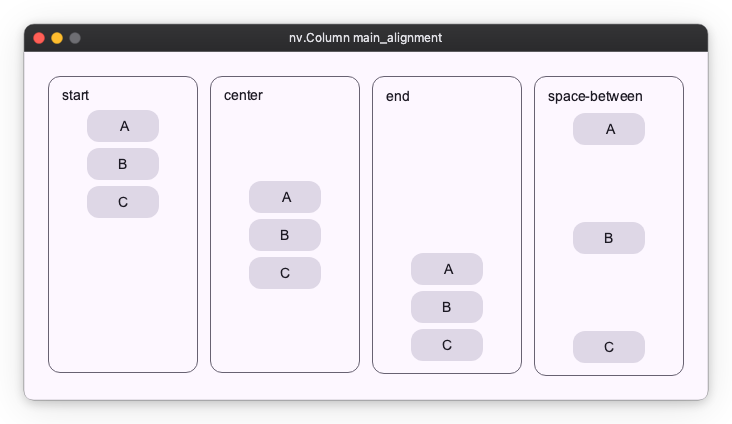
Column uses different values for the arranging direction (Vertical=Main) and the crossing direction (Horizontal=Cross).
main_alignment Examples
import nuiitivet as nv
import nuiitivet.material as md

main_alignments = [
    "start",
    "center",
    "end",
    "space-between",
]


def _demo_column(alignment: str) -> nv.Column:
    # The column has a fixed height, so main-axis alignment is visible.
    return nv.Column(
        width="100%",
        height=250,
        gap=6,
        main_alignment=alignment,
        cross_alignment="center",
        children=[_tile("A"), _tile("B"), _tile("C")],
    )


def _tile(label: str, *, width: int = 72, height: int = 32) -> md.Card:
    return md.Card(
        md.Text(label),
        width=width,
        height=height,
        alignment="center",
    )


def _panel(alignment: str) -> md.Card:
    return md.Card(
        nv.Column(
            children=[md.Text(alignment), _demo_column(alignment)],
            gap=8,
            cross_alignment="start",
            width="100%",
        ),
        width=150,
        padding=12,
        style=md.CardStyle.outlined(),
    )


nv.Column(
    gap=12,
    cross_alignment="start",
    children=[
        nv.Row(
            gap=12,
            main_alignment="start",
            cross_alignment="start",
            # Render all variants side-by-side for easy comparison.
            children=[_panel(a) for a in main_alignments],
        ),
    ],
)
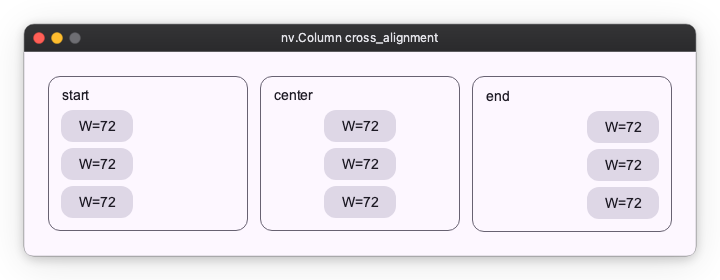
cross_alignment Examples
import nuiitivet as nv
import nuiitivet.material as md

cross_alignments = [
    "start",
    "center",
    "end",
]


def _demo_column(alignment: str) -> nv.Column:
    # The tiles are full-width, so cross-axis alignment is visible.
    return nv.Column(
        width="100%",
        gap=6,
        main_alignment="start",
        cross_alignment=alignment,
        children=[_tile("W=72"), _tile("W=72"), _tile("W=72")],
    )


def _tile(label: str, *, width: int = 72, height: int = 32) -> md.Card:
    return md.Card(
        md.Text(label),
        width=width,
        height=height,
        alignment="center",
    )


def _panel(alignment: str) -> md.Card:
    return md.Card(
        nv.Column(
            children=[md.Text(alignment), _demo_column(alignment)],
            gap=8,
            cross_alignment="start",
            width="100%",
        ),
        width=200,
        padding=12,
        style=md.CardStyle.outlined(),
    )


nv.Column(
    gap=12,
    cross_alignment="start",
    children=[
        nv.Row(
            gap=12,
            main_alignment="start",
            cross_alignment="start",
            # Render all variants side-by-side for easy comparison.
            children=[_panel(a) for a in cross_alignments],
        ),
    ],
)
| Property | Meaning | Available Values |
|---|---|---|
main_alignment |
Vertical placement | start (Top), center, end (Bottom), space-between (Both ends) |
cross_alignment |
Horizontal alignment | start (Left), center, end (Right) |
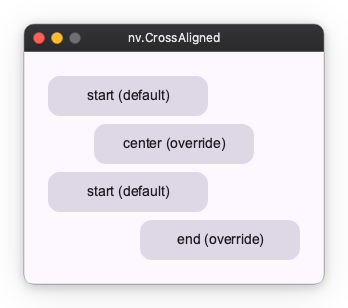
CrossAligned
cross_alignment on Row / Column applies the same alignment to all children.
Use CrossAligned to override the cross-axis alignment of one specific child without changing the rest.
import nuiitivet as nv
import nuiitivet.material as md


def _tile(label: str) -> md.Card:
    return md.Card(md.Text(label), width=160, height=40, alignment="center")


# Column with cross_alignment="start", but the middle tile is centered.
content = nv.Column(
    width=240,
    gap=8,
    cross_alignment="start",
    children=[
        _tile("start (default)"),
        nv.CrossAligned(_tile("center (override)"), "center"),
        _tile("start (default)"),
        nv.CrossAligned(_tile("end (override)"), "end"),
    ],
)
| Parameter | Meaning | Available Values |
|---|---|---|
child |
The widget to wrap | Any widget |
alignment |
Cross-axis alignment for this child only | start, center, end |
Next Steps
- Designing Sizes: layout_sizing.md
- Separation of Duties in Grid: layout_grid.md