Material Overlay
MaterialOverlay is a Material Design 3-flavored subclass of Overlay — the framework's system for displaying content above the main widget tree. It is automatically configured by App.
Import convention
Import App and Overlay from nuiitivet.material.
The rest of this guide follows this convention.
The base Overlay exposes three primitives: show_modal, show_modeless, and show_light_dismiss — see Primitives for details. MaterialOverlay wraps these with two additions:
- Shortcut methods —
dialog(),snackbar(),bottom_sheet(),side_sheet(),loading()— each pre-configured with the correct MD3 position and transition. - Intent resolution — shortcuts accept plain data objects (intents) in addition to widgets, decoupling business logic from the widget layer.
Accessing Overlay
App registers an Overlay instance as the root overlay. In most cases, use Overlay.root() to retrieve it directly.
Overlay.of(self) walks up the widget tree and returns the nearest ancestor Overlay. Use this only when you have intentionally nested an Overlay inside the widget tree and need to reach that inner instance rather than the root.
Shortcuts at a Glance
| Shortcut | Base primitive | Scrim |
|---|---|---|
dialog() |
show_modal |
Fade |
snackbar() |
show_modeless |
None |
side_sheet() |
show_modal |
Fade |
bottom_sheet() |
show_modal |
Fade |
loading() |
show_modeless |
None |
Every shortcut returns an OverlayHandle. You can await it to receive the result after the overlay closes:
For a full treatment of the handle/await pattern and MVVM architecture, see Dialogs.
Dialog
Displays a modal dialog with a scrim. This is the most common use case; refer to Dialogs for the complete guide including custom dialogs, OverlayAware, and MVVM patterns.
from nuiitivet.material import BasicDialog, Button, ButtonStyle, Overlay

overlay.dialog(
    BasicDialog(
        title="Delete item?",
        message="This action cannot be undone.",
        actions=[
            Button("Cancel", on_click=lambda: Overlay.root().close(None), style=ButtonStyle.text()),
            Button("Delete", on_click=lambda: Overlay.root().close(True), style=ButtonStyle.text()),
        ],
    )
)
| Parameter | Type | Default | Description |
|---|---|---|---|
dialog |
Widget \| Route \| Any |
required | Dialog widget, route, or intent |
dismiss_on_outside_tap |
bool |
True |
Dismiss when tapping the scrim |
timeout |
float \| None |
None |
Auto-dismiss after seconds |
Snackbar
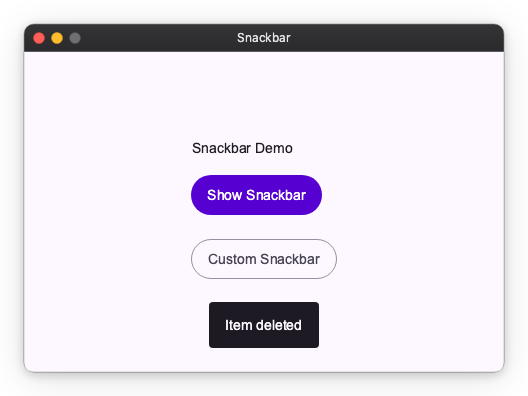
Displays a brief, non-blocking message at the bottom of the screen. Background interaction remains active. Automatically dismisses after duration seconds.
Pass a Snackbar widget for more control over appearance:
| Parameter | Type | Default | Description |
|---|---|---|---|
message |
str \| Snackbar \| OverlayRoute |
required | Message text, widget, or route |
duration |
float |
3.0 |
Display duration in seconds |
Side Sheet
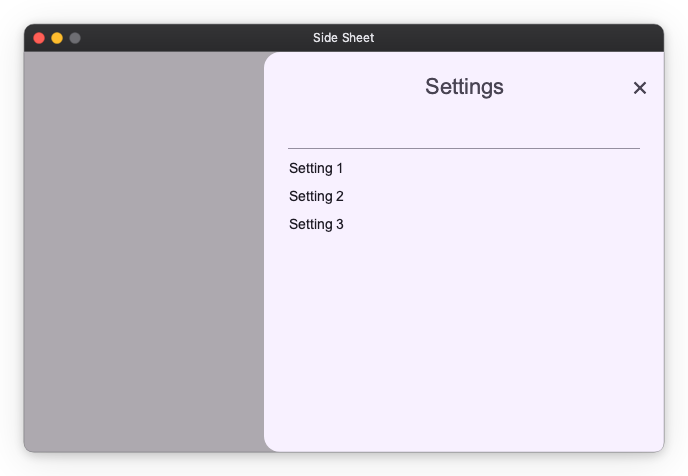
Displays a modal sheet that slides in from a side edge. The side parameter on SideSheet is the single source of truth for three things at once: the slide direction of the transition, the screen-edge alignment, and which corners are rounded. Keeping these in sync is the reason side_sheet() accepts only a SideSheet widget rather than an arbitrary OverlayRoute.
from nuiitivet.material import SideSheet, Text

overlay.side_sheet(
    SideSheet(
        headline="Settings",
        content=Text("Sheet content here"),
        side="right",
    )
)
| Parameter | Type | Default | Description |
|---|---|---|---|
sheet |
SideSheet |
required | Side sheet widget |
dismiss_on_outside_tap |
bool |
True |
Dismiss when tapping the scrim |
Bottom Sheet
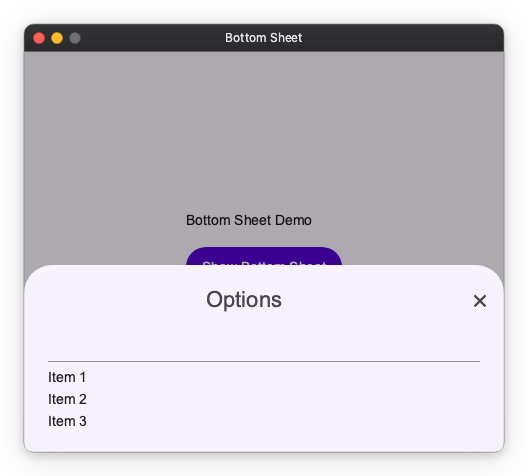
Displays a modal sheet that slides up from the bottom edge. The same principle as side_sheet() applies: the transition direction (slide from bottom), screen-edge position (bottom-center), and corner radii (top two corners rounded, bottom edge flush) must all stay consistent. Because all three are determined solely by the fact that it is a bottom sheet, bottom_sheet() accepts only a BottomSheet widget rather than an arbitrary OverlayRoute.
from nuiitivet.material import BottomSheet, Text

overlay.bottom_sheet(
    BottomSheet(
        headline="Options",
        content=Text("Sheet content here"),
    )
)
| Parameter | Type | Default | Description |
|---|---|---|---|
sheet |
BottomSheet |
required | Bottom sheet widget |
dismiss_on_outside_tap |
bool |
True |
Dismiss when tapping the scrim |
Loading Indicator
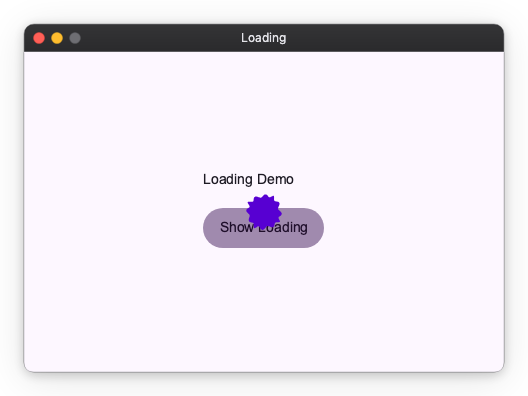
Displays a centered loading indicator. The overlay is modeless — background content remains visible but there is no dismiss gesture. Use handle.close(None) or while_loading() to dismiss it.
Manual Control
Context Manager
while_loading() shows the indicator and guarantees it is dismissed when the block exits, even on exceptions:
Custom Indicator
Material Design 3 Transitions
Each shortcut applies a pre-configured MD3 transition automatically. All transitions use Material Expressive spring-based easing (EXPRESSIVE_DEFAULT_EFFECTS).
| Shortcut | Enter | Exit | Scrim |
|---|---|---|---|
dialog |
Fade in + scale up from 92% | Fade out + scale down to 96% | Fades with content |
snackbar |
Fade in + slide up 20 px | Fade out | None |
bottom_sheet |
Slide in from bottom edge | Slide out to bottom edge | Fades with content |
side_sheet |
Slide in from side edge | Slide out to side edge | Fades with content |
loading |
Instant | Instant | None |
For dialog(), snackbar(), and loading(), pass an OverlayRoute(transition_spec=...) directly — each shortcut accepts OverlayRoute and uses it as-is.
bottom_sheet() and side_sheet() intentionally accept only their typed widget arguments. For sheets, the transition direction, screen-edge position, and corner radii must all stay consistent with each other; the shortcut derives all three from the widget's own properties (BottomSheet always slides from the bottom, SideSheet.side drives everything for side sheets). Accepting a free-form OverlayRoute would break that consistency, so these shortcuts do not support it. To display a fully custom sheet with a non-standard transition, call show_modal directly.
Intent System
Intents let view models request overlays without importing widget classes. Pass a plain data object to a shortcut; Overlay resolves it to the correct widget via the registered overlay_routes.
Built-in Intents
| Intent | Resolves to | Shortcut |
|---|---|---|
BasicDialogIntent |
BasicDialog with an OK button |
dialog() |
LoadingIntent |
Built-in LoadingIndicator |
loading() |
from nuiitivet.material.intents import BasicDialogIntent

overlay.dialog(BasicDialogIntent(title="Error", message="Something went wrong."))
Custom Intents
Register a mapping from intent type to widget factory in App:
from dataclasses import dataclass
from nuiitivet.material import App, BasicDialog, Button, ButtonStyle, Overlay


@dataclass(frozen=True)
class ConfirmIntent:
    message: str


App(
    HomeScreen(),
    overlay_routes={
        ConfirmIntent: lambda intent: BasicDialog(
            title="Confirm",
            message=intent.message,
            actions=[
                Button("Cancel", on_click=lambda: Overlay.root().close(False), style=ButtonStyle.text()),
                Button("OK", on_click=lambda: Overlay.root().close(True), style=ButtonStyle.text()),
            ],
        ),
    },
).run()
Dispatch from anywhere in the widget tree:
async def on_submit(self) -> None:
    handle = Overlay.of(self).dialog(ConfirmIntent(message="Submit form?"))
    result = await handle
    if result.value is True:
        self.submit()
For more on intents in the context of MVVM architecture, see Dialogs — Architecting Dialogs in MVVM.